February 11, 2026 · Gaurav Radadiya
A customer finds your product on Google, clicks through to your Shopify store, and sees “Sold Out.” What happens next? In most cases, they leave. They search again, find a competitor with the same product in stock, and buy there instead.
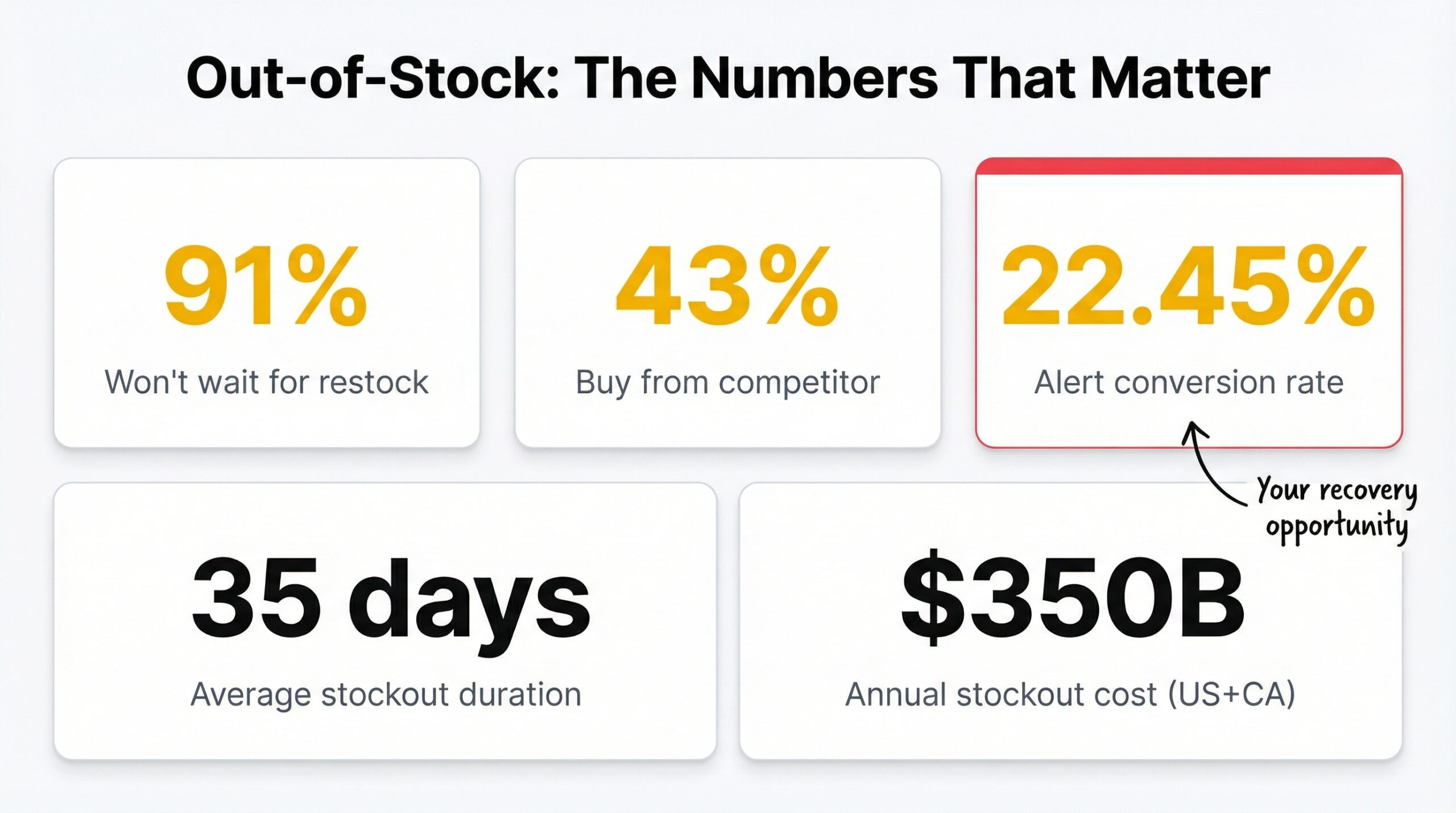
Knowing how to handle out-of-stock products on Shopify is the difference between losing that customer forever and bringing them back when you restock. The stakes are higher than most merchants realize. Stockouts cost US and Canadian retailers $350 billion every year (Shopify, 2025). And 91% of shoppers won’t wait for a restock, they move on immediately (Amra and Elma, 2025).
The good news? You don’t have to accept those losses. This guide walks you through every practical strategy for managing sold-out product pages on Shopify, from preserving your SEO rankings to capturing demand and recovering revenue automatically.
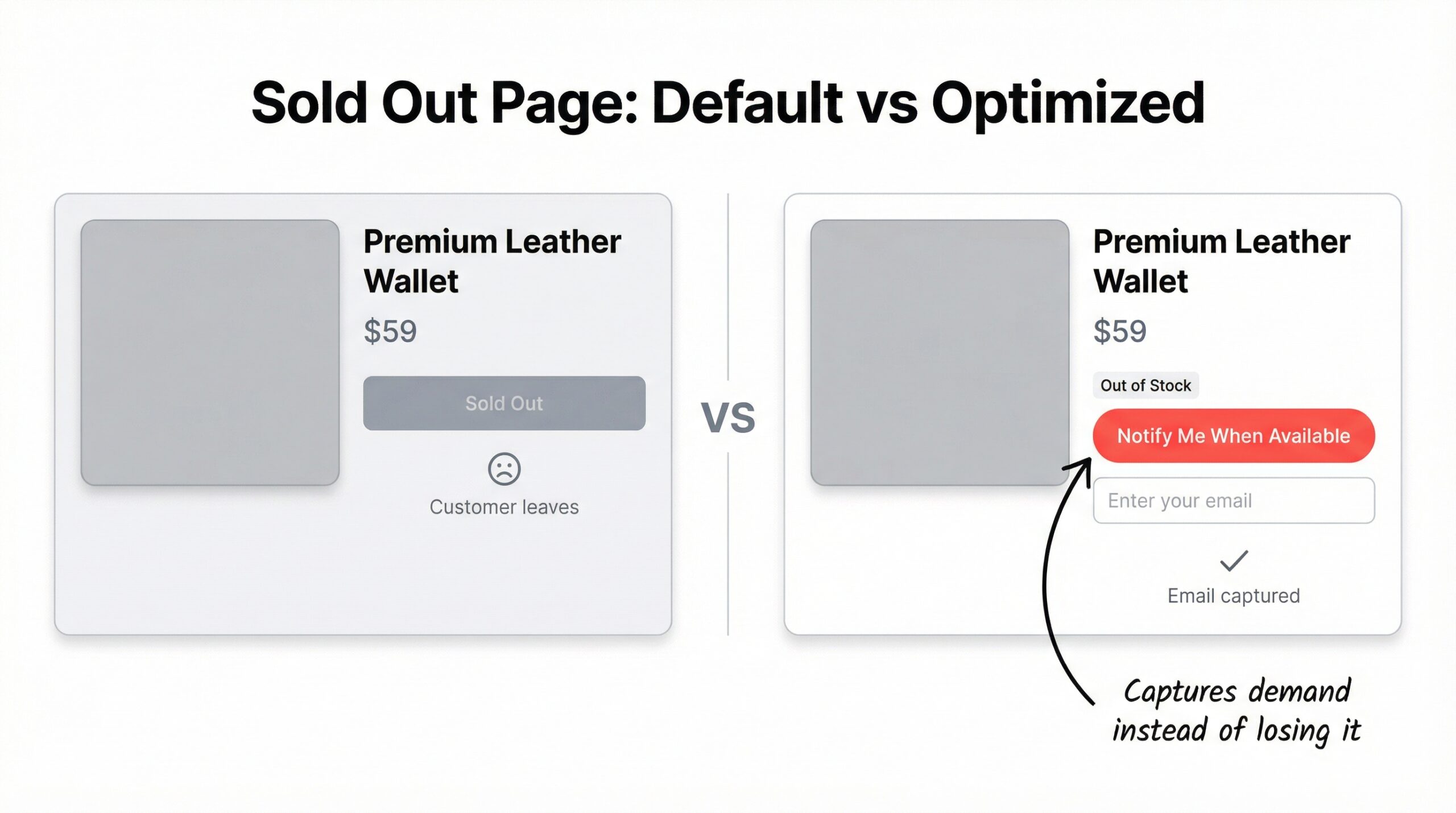
When a Shopify product’s inventory drops to zero, the default behavior depends on your theme and settings. Some stores automatically hide the product. Others display “Sold Out” with a disabled Add to Cart button. Neither default is ideal without additional optimization.
Here’s what your customers do when they land on an out-of-stock product page:
| Customer Behavior | Percentage | What It Means for You |
|---|---|---|
| Buy from a competitor | 43% | Permanent revenue loss |
| Won’t wait for restock | 91% | Almost no one checks back |
| Never return to your store | 63% | Lost customer lifetime value |
| Leave negative impression | 87% say poor availability hurts repeat rates | Brand damage compounds |
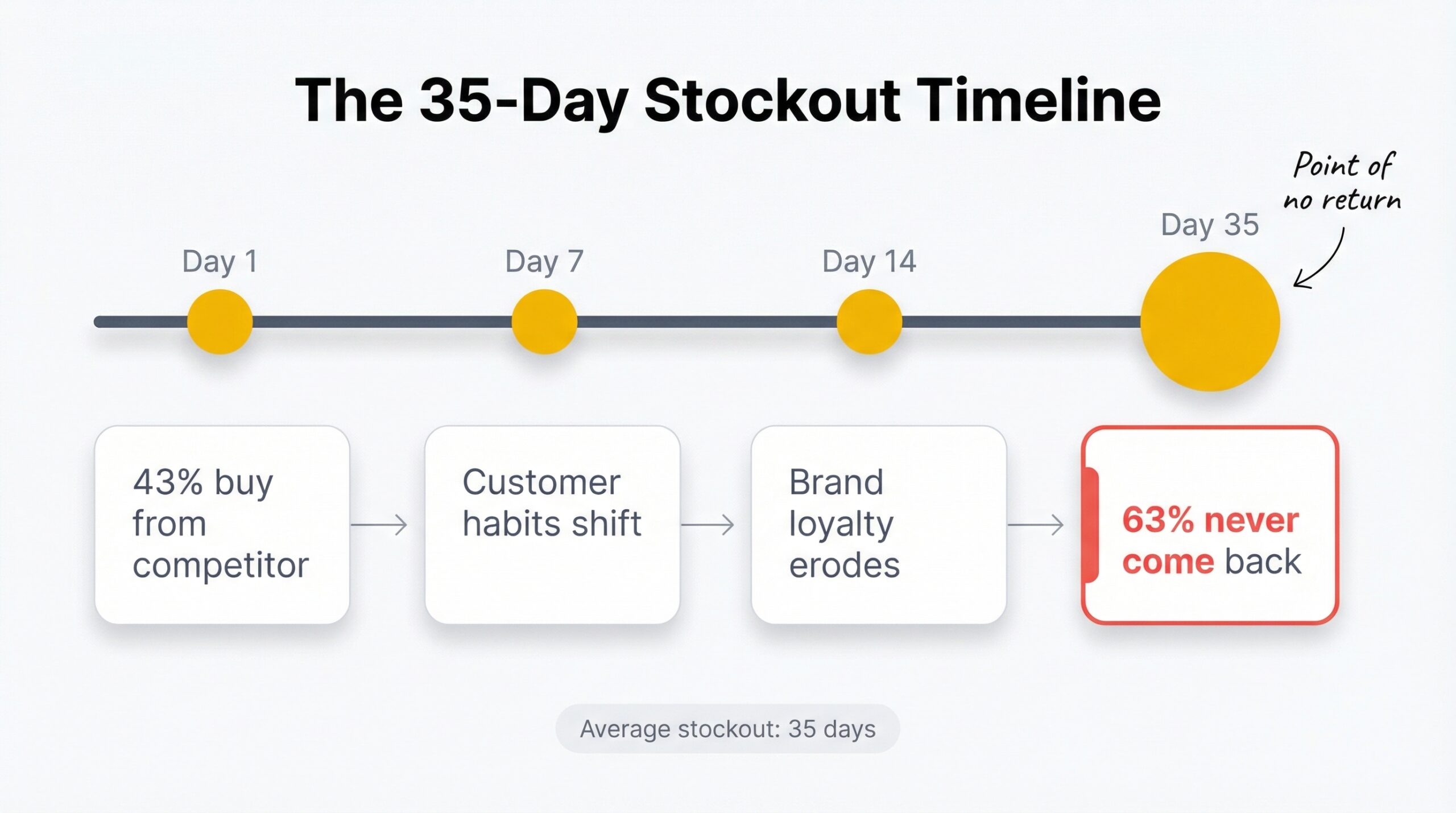
43% of shoppers buy from a competitor during a stockout (Amra and Elma, 2025). That’s not a customer who comes back next week. That’s a customer your competitor just acquired at your expense.
The average stockout lasts 35 days (8fig, 2025). At 35 days, you’re not just losing individual sales. You’re training customers to shop elsewhere. Research shows that 63% of customers who abandon a store due to a stockout never come back, that’s permanent customer churn, not a temporary dip.
Understanding what stockouts actually cost your store is the first step. But the real question is what to do about it.
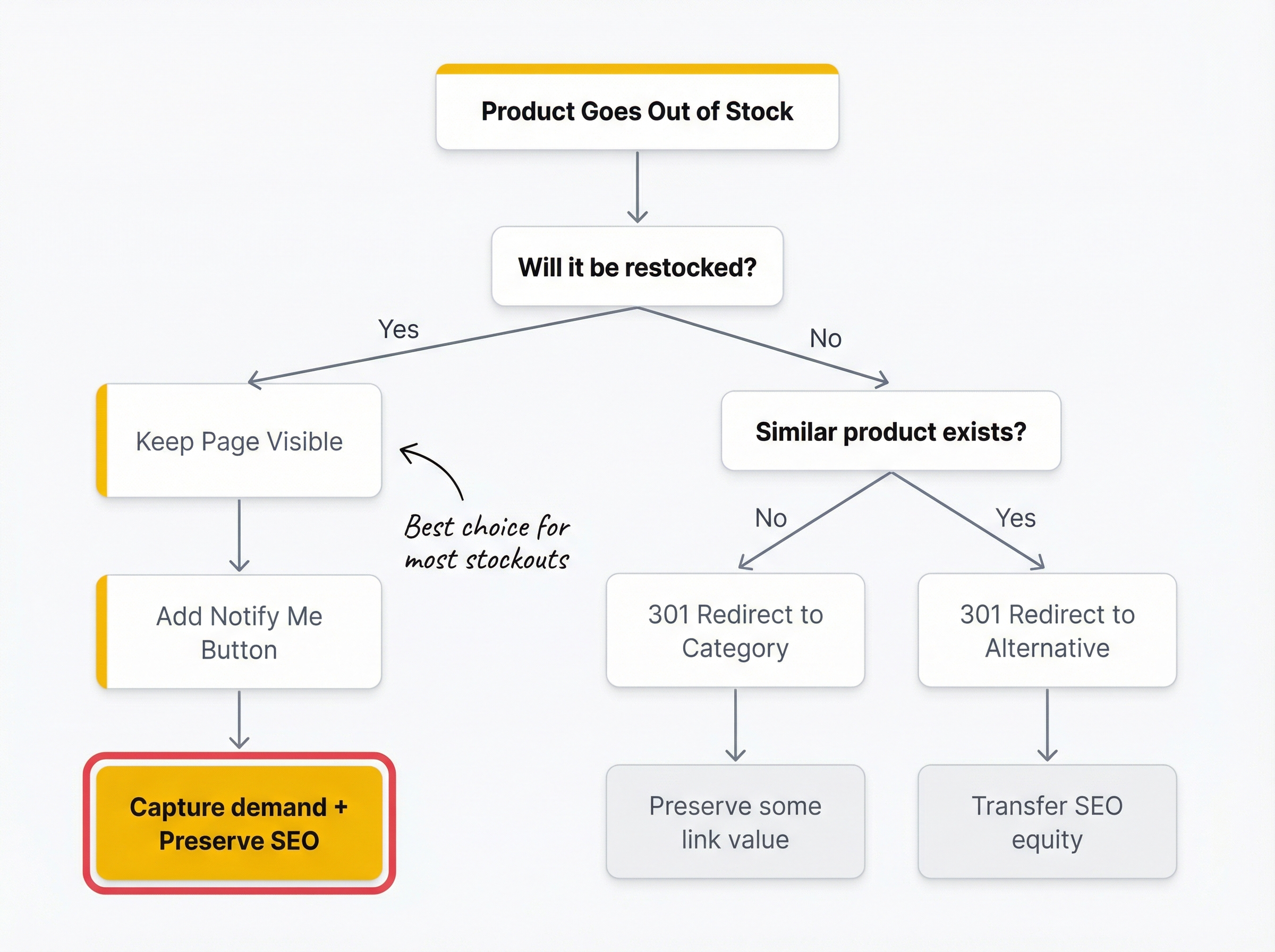
Every Shopify merchant faces the same three options when a product goes out of stock. The right choice depends on whether the product is coming back, how much traffic the page gets, and what your goal is.
| Approach | When to Use | SEO Impact | Customer Impact |
|---|---|---|---|
| Keep visible | Temporarily OOS, plan to restock | Preserves rankings and link equity | Captures demand via “Notify Me” |
| Hide from catalog | Seasonal items during off-season, low-traffic products | Minimal impact if product has low authority | Cleaner browsing experience |
| 301 redirect | Permanently discontinued | Transfers 90-99% of link equity to new URL | Sends customers to relevant alternative |
This is the right call for most stockouts. If you plan to restock the product, keep the page live. Here’s why:
87% of brands report that poor product availability directly impacts repeat purchase rates. Keeping the page visible with a clear “back soon” message shows customers you’re actively managing your catalog.
Hide products when they’re seasonal items during the off-season (winter coats in July), when the product page has minimal traffic or SEO value, or when displaying it confuses customers about your current catalog.
For permanently discontinued products, a 301 redirect preserves your SEO investment (Yoast, 2025). Point the old URL to the closest alternative product or the parent category page. This passes the majority of link equity to the new destination, so the SEO value you built doesn’t evaporate.
Never delete a product page with existing traffic or backlinks. That’s throwing away months or years of accumulated search authority.
Keeping a product page visible is step one. Optimizing it for the out-of-stock period is what separates stores that recover revenue from those that just bleed it.
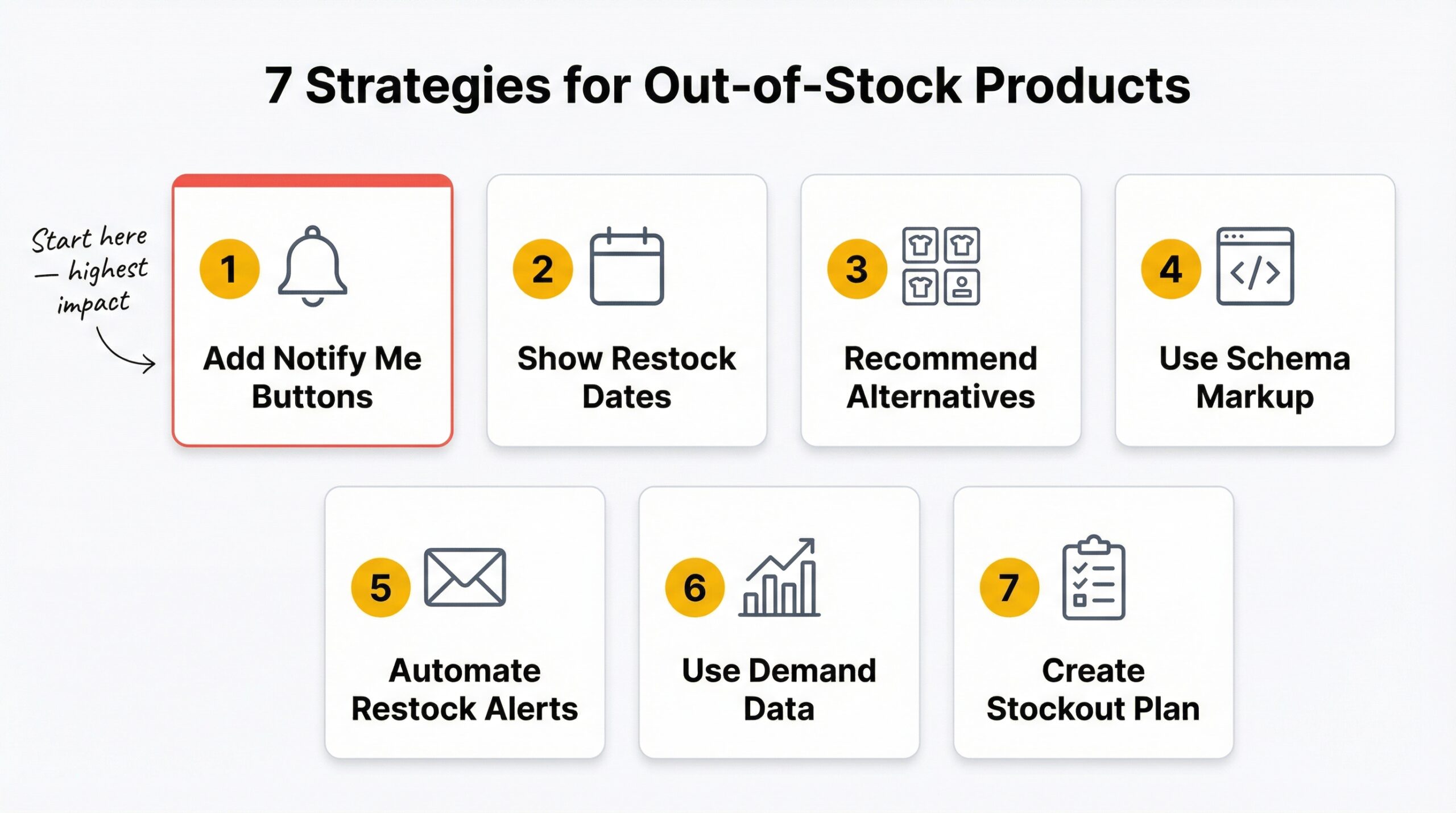
Here’s what every out-of-stock product page on your Shopify store should include:
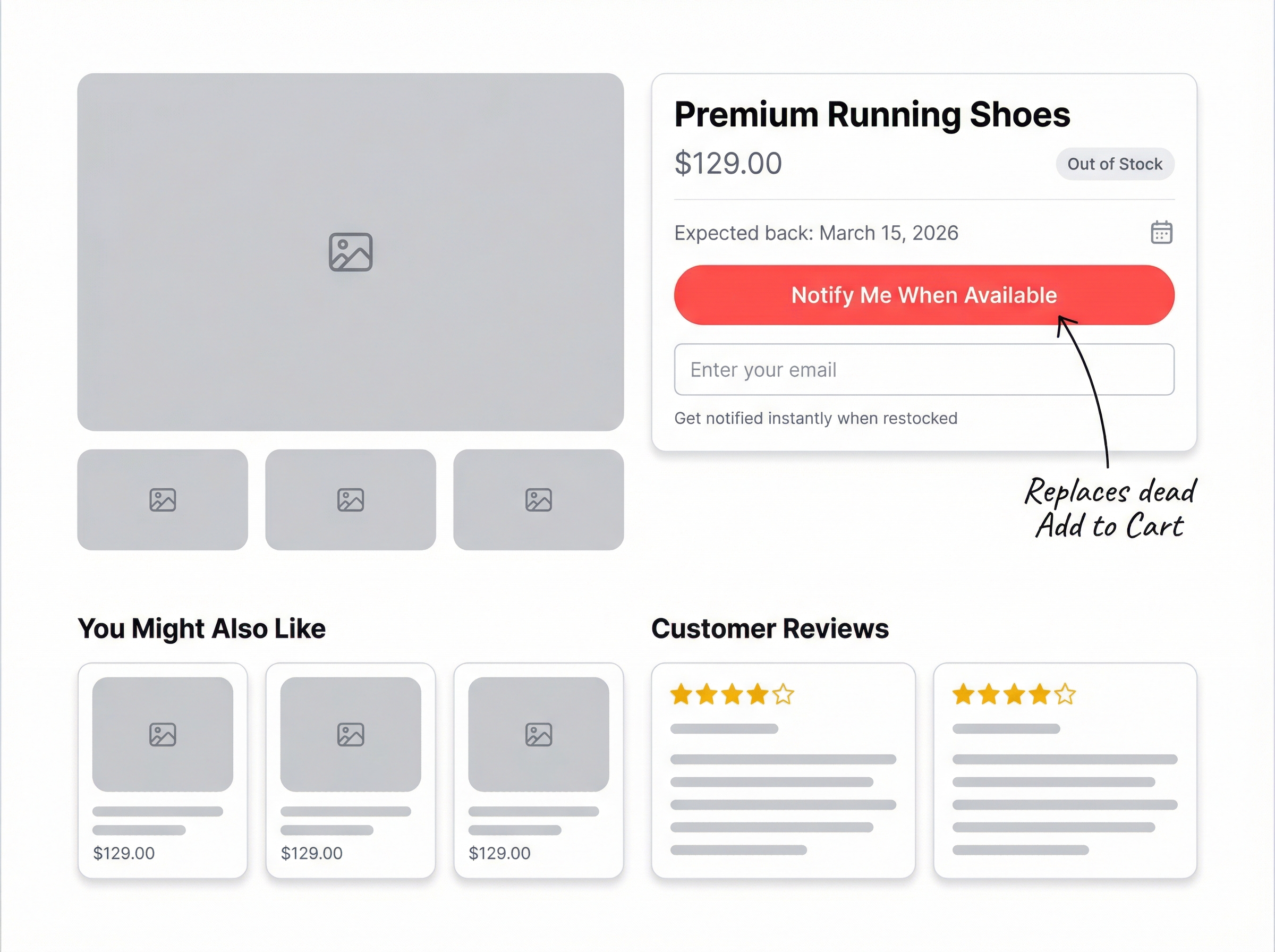
This is the single highest-impact change you can make. A “Notify Me” button replaces the disabled Add to Cart and collects customer emails (and optionally WhatsApp numbers) for when you restock.
Apps like StoreBeep add this button automatically to every out-of-stock product page. When you restock, customers who signed up get an instant email notification, no manual follow-up required.
Correct schema markup tells Google exactly what’s happening with your product. Instead of Google showing stale “In Stock” information in search results (which frustrates users and hurts your click-through rate), it displays accurate availability data.
| Schema Value | When to Use | Google Display |
|---|---|---|
| InStock | Product available for purchase | Shows “In stock” in search |
| OutOfStock | Temporarily unavailable | Shows “Out of stock” in search |
| PreOrder | Accepting orders before restock | Shows “Pre-order” in search |
| Discontinued | Product permanently removed | Signals to deindex over time |
If you know when a product will be back, tell your customers. “Expected back in stock: March 15” gives people a reason to sign up for notifications instead of immediately searching for competitors.
Show 3-4 related products on the sold-out page. This keeps customers shopping your store instead of bouncing to a competitor. Use Shopify’s built-in related products feature or a recommendation app.
Don’t strip the page bare just because inventory is at zero. Customer reviews, product descriptions, and images maintain the page’s value for both SEO and customer trust. Shoppers research products even when they can’t buy immediately.
Replace the Add to Cart button with a clear message: “This product is currently out of stock. Sign up below to be notified when it’s back.” No ambiguity. No dead buttons. A clear path forward.
| Page Element | In Stock | Out of Stock (Optimized) |
|---|---|---|
| Product title | Visible | Visible |
| Product images | Visible | Visible |
| Price | Visible | Visible (shows value) |
| Description | Visible | Visible |
| Reviews | Visible | Visible |
| Add to Cart | Active | Replaced with “Notify Me” |
| Restock date | N/A | Displayed when known |
| Related products | Optional | Prominent |
The most effective Shopify out-of-stock management strategy is to capture demand and convert it when inventory returns. That’s exactly what back-in-stock alerts do for sold-out product pages.
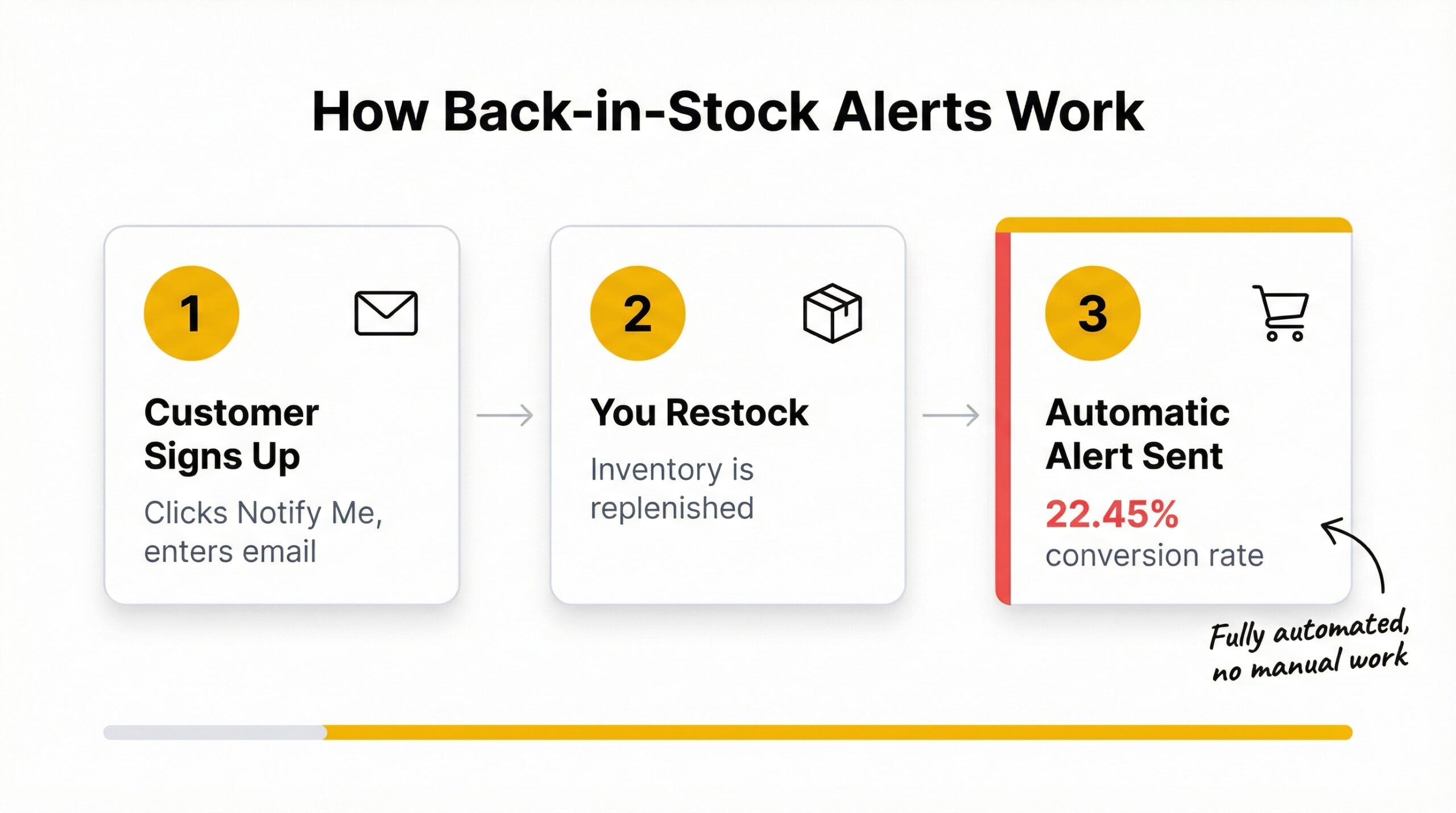
Back-in-stock alert emails achieve a 22.45% conversion rate (MarketingSherpa, 2025). Compare that to the typical ecommerce email campaign conversion rate of 1-3%. Restock emails convert at 7-10x the normal rate because these are customers who already decided they want your product.
Industry benchmarks show restock emails also generate 30-35% click-through rates, far exceeding the average marketing email performance.
The process is straightforward with Shopify notification systems designed for revenue recovery:
No manual tracking. No remembering who wanted what. The entire workflow runs on autopilot.
| Factor | Manual Follow-up | Automated Alerts |
|---|---|---|
| Speed after restock | Hours to days | Instant (automated) |
| Scalability | Limited by team capacity | Unlimited |
| Consistency | Human error prone | 100% reliable |
| Conversion rate | Lower (delayed) | 22.45% (immediate) |
| Time investment | High | Set up once |
| Demand data | None captured | Full analytics dashboard |
StoreBeep handles this entire workflow automatically. When inventory is replenished, every customer who signed up receives a branded email from your custom sender domain, not from a generic third-party address. Purchase tracking shows you exactly how much revenue each alert recovers.
Out-of-stock products create specific SEO risks that most merchants don’t think about until rankings drop. Here’s how to keep your search visibility intact.
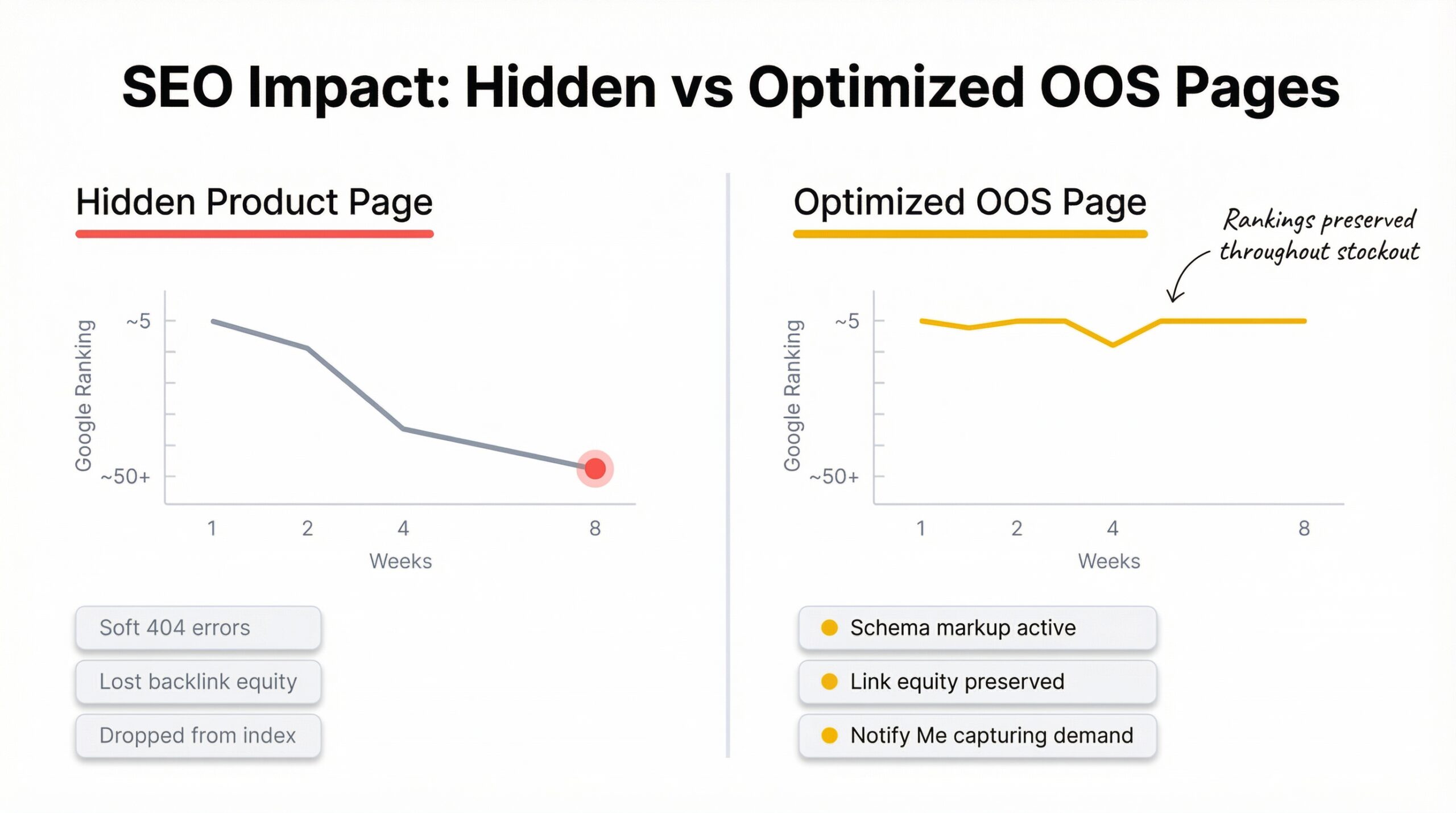
When a product is temporarily out of stock, do not add a noindex tag or remove it from your sitemap. Google should continue to see and index the page. The schema.org/OutOfStock markup tells Google the page is still valid, just temporarily unavailable.
If you hide the product page and Google can’t find it, the page loses ranking signals. When you restock, you’re essentially starting from scratch in search results.
For products you won’t bring back, implement a 301 redirect to the most relevant alternative. This transfers the bulk of your accumulated link equity. A product page with backlinks from blogs, review sites, or social media has real SEO value. A 301 redirect preserves that value instead of throwing it away.
Some Shopify themes return a 200 status code for hidden products while showing users a “product not found” page. Google treats these as soft 404 errors and may penalize the pattern across your site. Audit your hidden products to ensure they’re actually returning proper 404 or 301 status codes.
High bounce rates on out-of-stock pages signal to Google that visitors aren’t finding what they need. Adding a “Notify Me” button, related products, and restock estimates reduces bouncing and keeps engagement metrics healthy.
Don’t remove internal links to temporarily out-of-stock products. Internal links pass authority and help Google understand your site’s structure. When the product restocks, those links immediately drive traffic again.
Here’s your complete playbook for managing every out-of-stock scenario on your Shopify store.
This is non-negotiable. Every out-of-stock product should have a way for customers to register interest. A back-in-stock alert app for Shopify automates this entire process and collects emails, WhatsApp numbers, and newsletter signups in a single form.
Transparency builds trust. If you expect a product back in two weeks, say so. Customers are more likely to sign up for notifications when they know the wait won’t be indefinitely long.
Don’t let a sold-out page be a dead end. Display 3-4 alternative products that satisfy a similar need. This keeps customers shopping your store and reduces the chance they leave for a competitor.
Apply the correct ItemAvailability schema (OutOfStock, Discontinued, PreOrder) to every product. This ensures Google displays accurate availability in search results, which improves user trust and reduces frustrated clicks.
Manual outreach doesn’t scale. Automated restock alerts fire the moment inventory is replenished, catching customers while purchase intent is still warm. The 22.45% conversion rate speaks for itself.
Every “Notify Me” signup is a data point. Products with 200 waitlist signups should be restocked before products with 5. Use demand insights to make smarter purchasing decisions and allocate inventory budgets where customer interest is highest.
For your top sellers, have a plan before they go out of stock. Pre-arrange supplier timelines, set up “Notify Me” buttons preemptively, and prepare email sequences. Being proactive instead of reactive saves both revenue and customer relationships.
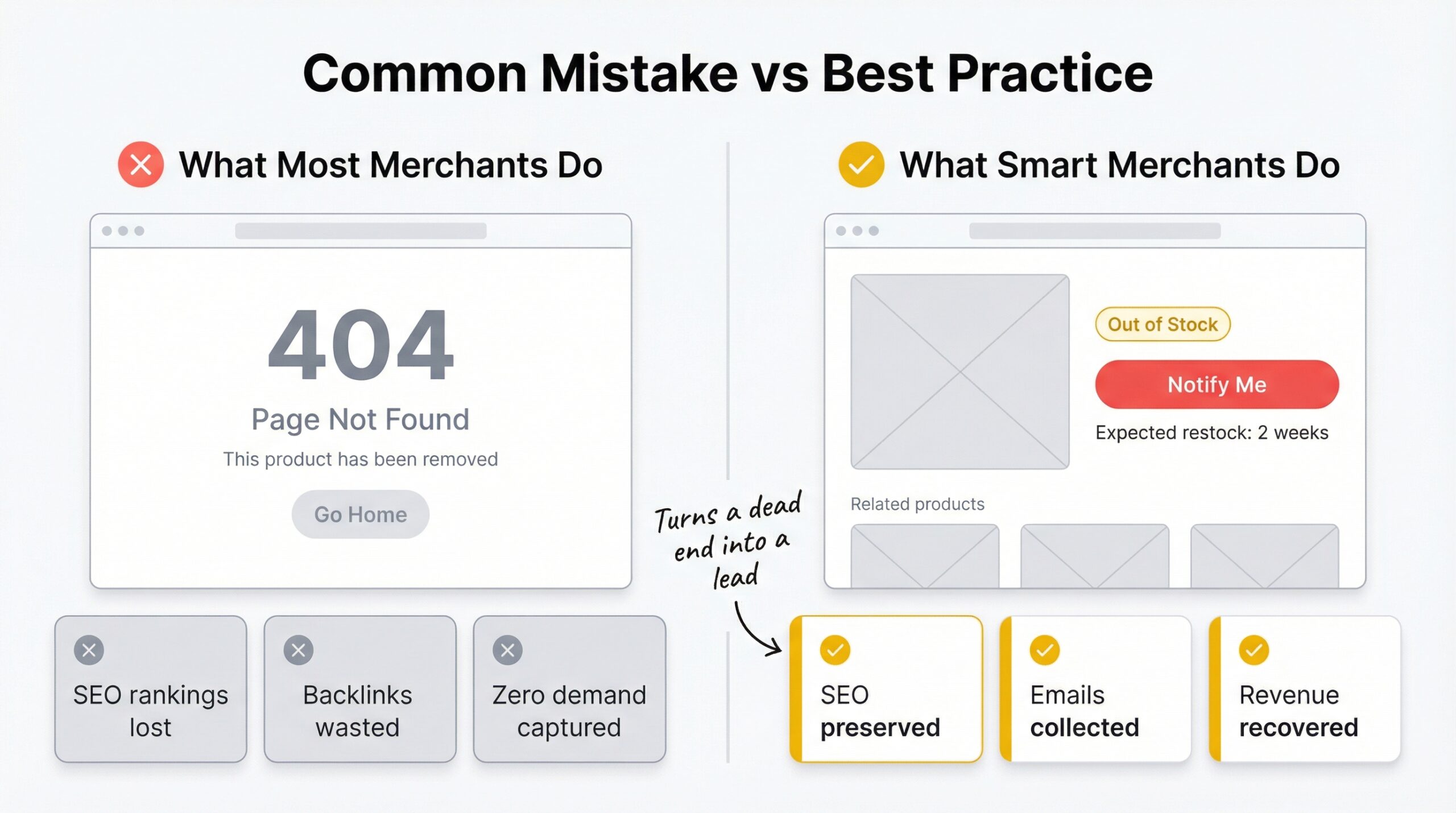
Knowing what not to do is just as important as knowing the right approach. These mistakes cost Shopify merchants real money.
This destroys every backlink, every Google ranking, and every SEO signal that page accumulated. If a product page has any traffic history or external links, never delete it. Redirect it instead.
Shopify makes it easy to automatically hide out-of-stock products. But “easy” doesn’t mean “smart.” Hiding products removes them from your sitemap, drops them from Google’s index, and kills your ability to capture demand.
When customers search for a product and land on your sold-out page, they’re telling you something: there’s demand. Ignoring that signal by showing a blank “Sold Out” message wastes valuable market intelligence.
Tracking stockout customers in a spreadsheet and manually emailing them when products return is slow, unreliable, and impossible to scale. With 91% of shoppers refusing to wait, speed matters. Automated alerts reach customers instantly.
If you don’t measure it, you can’t improve it. Track how many customers visit OOS pages, how many sign up for notifications, and how many convert when products restock. This data reveals the true cost of your stockouts and the ROI of your recovery efforts.
For a detailed breakdown of these costs, check out the real cost of being out of stock for Shopify merchants.
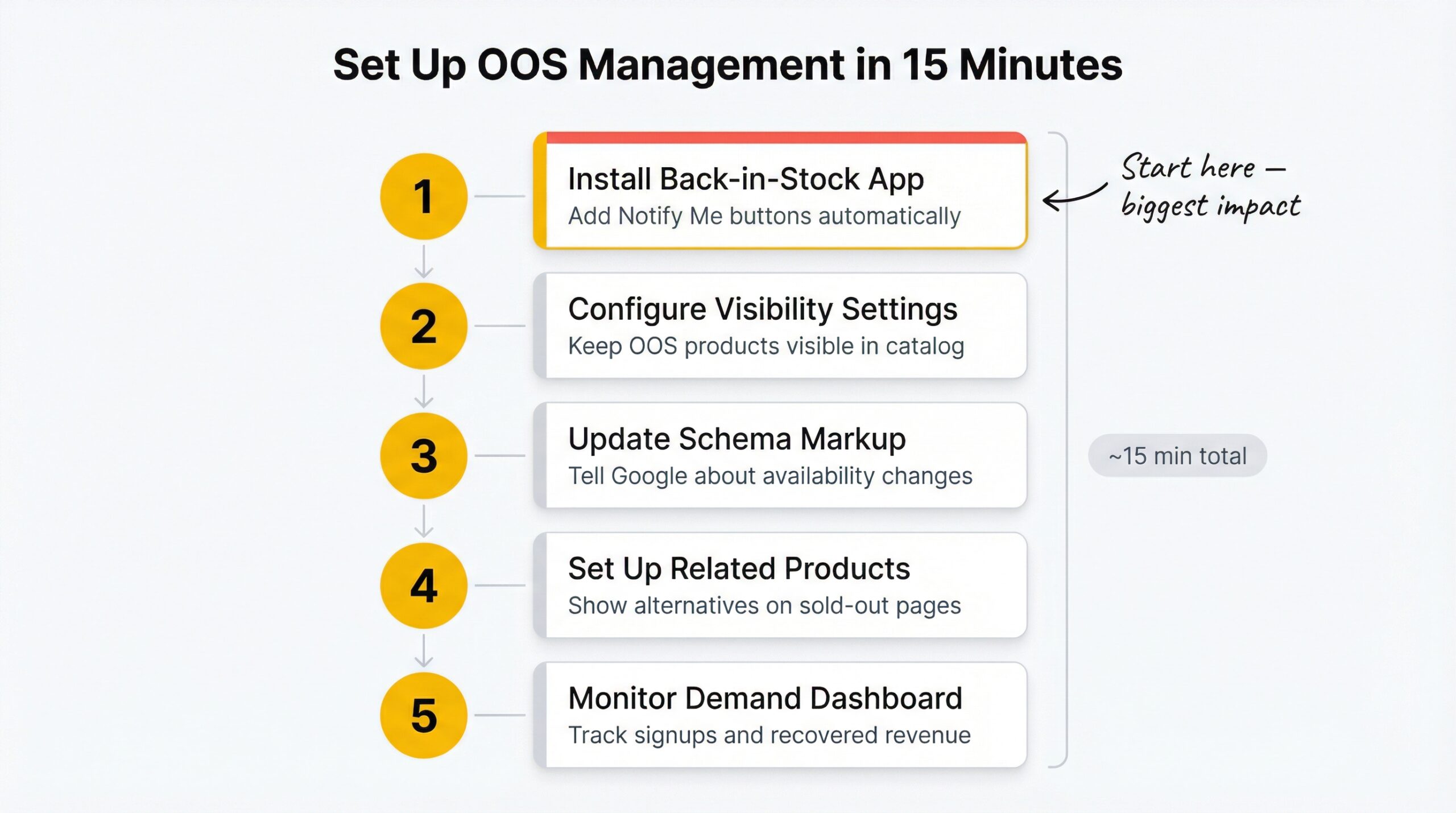
Getting your Shopify store ready to handle stockouts properly takes about 15 minutes. Here’s the quick setup:
Step 1: Install a back-in-stock notification app
Choose an app that adds “Notify Me” buttons automatically, sends branded restock emails, and tracks purchases. StoreBeep handles all three and starts with a free plan.
Step 2: Configure your product visibility settings
In Shopify admin, go to Settings > Products and decide your default behavior for OOS products. For most stores, keeping products visible is the better choice.
Step 3: Update schema markup
Ensure your theme correctly outputs schema.org/OutOfStock when products are unavailable. Many modern Shopify themes handle this automatically, but verify by testing your pages with Google’s Rich Results Test.
Step 4: Set up related product recommendations
Configure your theme or a recommendation app to display alternatives on out-of-stock product pages. This reduces bounce rates and keeps customers shopping.
Step 5: Monitor your demand dashboard
Review your restock notification signups weekly. Products with growing waitlists need restocking priority. Use this data to inform your purchasing decisions.
For more tips and strategies, visit the StoreBeep blog for Shopify merchants.
No, hiding out-of-stock products is usually a mistake for Shopify stores. Keeping product pages visible preserves your SEO rankings, allows you to capture demand through “Notify Me” buttons, and shows customers you carry popular items.
Keep temporarily out-of-stock product pages live with updated schema markup (schema.org/OutOfStock), add a “Notify Me” button, and suggest alternative products. For permanently discontinued items, use a 301 redirect to the most relevant active page.
Keep the page visible, add a back-in-stock notification button, display expected restock dates, and recommend similar products. This preserves SEO value and captures customer demand at the same time.
Yes. Back-in-stock alert emails achieve a 22.45% conversion rate (MarketingSherpa, 2025). These are high-intent customers who already want your product, making them far more likely to purchase than cold traffic.
Never delete a product page that has traffic or backlinks. Set up a 301 redirect to the closest alternative product or category page to preserve the SEO value you built over time.
Keep it active as long as you plan to restock the product. If it’s permanently discontinued, redirect the page after 2-4 weeks. For seasonal items, keep the page live year-round with a “Notify Me” button to capture off-season demand.
Use schema.org/OutOfStock for temporarily unavailable products and schema.org/Discontinued for products you won’t restock. Correct schema markup helps Google display accurate availability information in search results.
Stores using automated back-in-stock alerts typically recover 20-40% of otherwise lost stockout revenue. With 91% of shoppers refusing to wait for restocks, capturing their email before they leave is the highest-leverage recovery action you can take.
Hiding removes a product from your storefront but keeps the page accessible via direct URL. Deleting permanently removes the page, destroying all SEO value. Always hide or redirect rather than delete.
Yes. Adding a “Notify Me” button to out-of-stock product pages is the most effective way to collect customer emails and build a waitlist. When you restock, automated alerts convert those signups into purchases at significantly higher rates than standard email campaigns.
Handling out-of-stock products on Shopify isn’t just about inventory management. It’s about protecting revenue, preserving hard-won SEO rankings, and turning stockouts from customer-losing events into customer-retaining ones.
The data is clear: $350 billion is lost to stockouts annually. 91% of shoppers won’t wait. 43% buy from competitors. But stores that implement proper out-of-stock management, with “Notify Me” buttons, automated restock alerts, and optimized product pages, recover a significant portion of that lost revenue.
Start with the highest-impact action: add back-in-stock notification buttons to every sold-out product in your store. Capture the demand that’s currently walking out the door. Then layer in schema markup, related product recommendations, and a stockout response plan.
Every day you leave an out-of-stock product page unoptimized is a day you’re losing customers you could keep.
Last updated: February 2026
Keep reading